MAG Box IPTV Setup UK: Portal, Stalker and Configuration Guide
MAG boxes use a different login model from app-based players. Here is how portal configuration works, and why the MAC address matters.
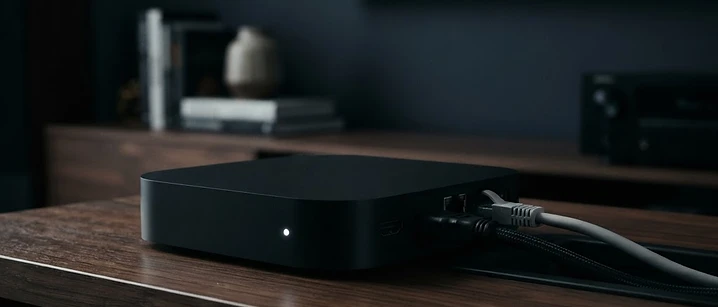
Direct answer: a MAG box authenticates against your provider's middleware using its MAC address rather than a username and password. You enter the portal URL in Settings, System Settings, Servers, Portals, then reboot. Your provider must register the MAC address first, or the portal will not open.
MAG boxes work on a different model from app-based players, and that difference explains most of the confusion around them.
How MAG boxes differ from app-based players
An app-based player such as IPTV Smarters or TiviMate authenticates with credentials you type in. A MAG box authenticates with its hardware address, and your provider authorises that address on their side.
| Aspect | MAG box | App-based player |
|---|---|---|
| Login method | MAC address registered by provider | Username and password, or M3U URL |
| Interface | Fixed, supplied by the portal | Varies by app |
| Apps | None beyond the portal | Full app ecosystem |
| Flexibility | Limited | High |
| Setup | Portal URL plus MAC registration | Credentials typed in |
The practical consequence: you cannot move a MAG box subscription to a different device the way you can with a username and password. The authorisation is tied to that specific box.
Step 1: Find and record your MAC address
Before contacting your provider, find the MAC address.
- It is printed on a label on the underside of the box
- It also appears in Settings, Network, where the device shows its connection details
- It looks like six pairs of characters separated by colons
Write it down exactly. Providers need it in full, and a single wrong character means the portal will not authorise.
Step 2: Ask your provider to register the MAC
Send your provider the MAC address and ask them to activate the device on your subscription. This step happens on their system, not yours, and nothing you do on the box will work until it is done.
What to include: the full MAC address, your account reference, and confirmation of the model. Our guide to IPTV subscription types explains what a subscription normally covers.
Step 3: Connect the box to your network
- Power on the box and let it complete its startup sequence.
- Press Setup on the remote, or select Settings from the embedded portal.
- Open Network and choose your connection type.
- For Ethernet, confirm the box has been assigned an IP address.
- For Wi-Fi, select your network and enter the password.
- Confirm the connection shows as active before moving on.
A wired connection is strongly preferable for live sport. See our buffering guide for why.
Step 4: Enter the portal URL
The portal URL is what tells the box where your provider's middleware lives. It is supplied by your provider and usually looks like a web address with a port number.
- Open Settings.
- Select System Settings.
- Select Servers.
- Select Portals.
- Choose Portal 1 and enter the URL exactly as supplied.
- Save, then reboot the box.
On entering the URL: use the remote's on-screen keyboard carefully. A missing character, an added space, or http where https was specified will all cause a failure. Compare the start and the end of the URL with what your provider sent.
Step 5: Load and verify
After the reboot the box should load the portal automatically and present your channel list.
Check these three things:
- The channel list appears with categories
- Channels start playing
- The programme guide populates, if your provider supplies guide data
If the guide is empty but channels play, that is a guide issue rather than a portal issue — see IPTV EPG explained.
Common MAG box problems
| Symptom | Likely cause | Fix |
|---|---|---|
| 'Portal not found' | Wrong or incomplete URL | Re-enter the URL character by character |
| Portal loads, no channels | MAC not authorised, or account inactive | Contact your provider |
| Blank screen on boot | Network not connected | Check the network settings and cable |
| Channel list stale | Portal cache | Reboot the box |
| Some channels will not play | Codec or provider-side issue | Test the same account in an app-based player |
| Box reboots repeatedly | Power supply or firmware | Try a different power supply, update firmware |
Maintaining a MAG box
- Reboot weekly. These boxes accumulate state and the portal cache can go stale.
- Update firmware when the device offers it, but not in the middle of a viewing session.
- Leave the box powered if your provider refreshes channel lists overnight.
- Do not share the MAC address. It is the credential that identifies your subscription.
- Keep a note of the portal URL, since you will need it if the box is reset.
Is a MAG box the right choice?
MAG boxes made sense when portal-based middleware was the norm. Today, most UK viewers are better served by an Android TV box or a streaming stick, because those support a wider range of players, handle modern codecs better and cost less. Our IPTV box guide compares the options directly.
Choose a MAG box if your provider runs portal-based middleware and you want a fixed, simple interface that nobody can reconfigure.
Choose a stick or Android box if you want flexibility, app choice and better codec support — see our best IPTV apps guide.
The bottom line
MAG box setup comes down to four things: find the MAC address, have your provider register it, enter the portal URL exactly, and reboot. If the portal will not open, the fault is almost always the URL or the MAC registration — not the box itself.
For the wider picture, see our pillar guide to IPTV in the UK.
Frequently asked questions
Related guides

 Devices
IPTV on Apple TV and Roku: What Works in the UK
Apple TV and Roku are excellent streaming devices, but neither is designed with IPTV in mind. Here is what works on each, and what to do when an app is not in the store.

 Devices
IPTV on Smart TV UK: Samsung, LG and Android TV Guide
A practical guide to running IPTV on a UK Smart TV — which platforms support it, how setup works, and what to do when an app is not available.

 Devices
Watching IPTV on Your Phone or Tablet in the UK
Your phone is the most flexible screen you own. Here is what to know before you use it for IPTV — data use, battery, casting and how connections work.


Ready when you are.
Pick a package, tell us your device, and we'll help you get set up for the evening.