TiviMate Setup Guide UK: Add a Playlist and Build Your Guide
TiviMate is the player many UK viewers settle on for its guide and channel management. Here is the setup from install to a tidy, fast channel list.
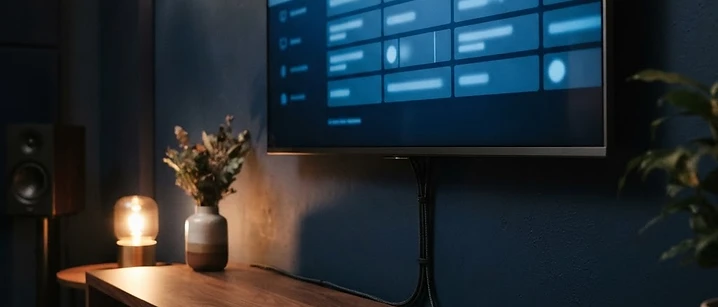
Short answer: install TiviMate from the Google Play Store on an Android TV or Fire TV device, add a playlist using either Xtream Codes details or an M3U link, then let the EPG download. Setup takes about fifteen minutes, most of it waiting.
TiviMate is popular in UK households for one reason: it treats the programme guide as the main event rather than an afterthought. If you want a television-style grid you can actually browse, it is worth the slightly longer setup.
What you need
- An Android TV, Google TV or Fire TV device — a box or stick with at least 2 GB of memory
- Your IPTV login details: server address, username and password, or an M3U playlist link
- A stable connection; see what speed you need
- About fifteen minutes
TiviMate is not available on Samsung or LG Smart TVs. If that is what you have, an Android TV box or Fire TV Stick connected by HDMI is the practical route — our Smart TV guide covers the options.
Step 1: Install the app
- Open the Google Play Store on your Android TV or Google TV device. On Fire TV, use the Amazon Appstore or sideload if your provider supplies a build.
- Search for TiviMate.
- Install the free version to begin with. The premium version unlocks recording, more playlists and extra customisation — try the free one first.
- Open the app and accept the setup prompts.
Step 2: Add your playlist
- Choose Add playlist.
- Select the type:
- Xtream Codes — for a server address, username and password
- M3U playlist — for a single link ending in
.m3uor.m3u8
- Enter the details exactly as supplied. With Xtream Codes, include the full server address with
http://and the port number if one was given. - Give the playlist a name you will recognise later.
- Choose Next and wait while TiviMate downloads the channel list. This can take several minutes on a large playlist.
If the login fails, our login troubleshooting guide covers the error messages, and the IPTV Smarters setup guide explains the Xtream Codes format in more detail.
Step 3: Set up the programme guide
- When prompted, choose to add an EPG source.
- Use the guide address supplied with your subscription — often the same server address, or a separate XMLTV link.
- Set the update interval to 12 or 24 hours so the guide refreshes overnight.
- Select Update EPG and give it a few minutes.
If the grid stays empty, work through our EPG troubleshooting guide. For background on what the guide data contains, see IPTV EPG explained.
Step 4: Tidy the channel list
This is where TiviMate earns its reputation. Five minutes here saves hours of scrolling later.
- Open Settings, then Channels.
- Hide categories you never watch — shopping, regional and adult sections are common candidates.
- Reorder categories so Entertainment, Sport and News sit at the top.
- Create groups to combine related channels from different categories.
- Use the Favourites feature for the twenty or so channels you actually watch.
Step 5: Tune playback
- Buffer size — leave the default unless you see regular stutter; a larger buffer helps an unstable connection but slows channel changes.
- Decoding — try the hardware decoder first. If a channel shows a black screen with sound, switch that channel to software decoding.
- Aspect ratio — leave on Auto unless a specific channel is stretched.
- Audio output — set to stereo unless you have a full surround system, as covered in our audio troubleshooting guide.
Common setup problems
The playlist loads but the guide is blank — the EPG source is missing or incorrect. Add it separately under Playlists, then EPG.
Channels buffer but the same login is fine elsewhere — a device or network limitation rather than the playlist. See our guide to channels not loading.
The app feels slow to navigate — too many channels are loaded. Hide categories and avoid loading VOD content you do not watch.
Login rejected on first setup — almost always a typo or a trailing space. Re-type the details manually.
Tips for a better TiviMate setup
- Set the guide to update overnight so the app opens instantly in the morning.
- Use a wired Ethernet connection on boxes that support it.
- Restart the device weekly — Android TV boxes accumulate background processes.
- Keep the app updated; providers change servers more often than people expect.
- Export your settings if the app offers it, so a device replacement is quick.
The bottom line
TiviMate takes a little longer to set up than a basic player, and the payoff is a channel list that feels like a proper television guide. Do the tidy-up step properly and you will not need to revisit the settings for months.
Setting up the rest of the household? Our IPTV setup guide and multi-room guide cover the wider picture.
Frequently asked questions
Related guides

 Apps
AppsIPTV Smarters Player Setup UK: Xtream Codes and M3U Login Guide
A practical walkthrough of IPTV Smarters Player on Fire TV, Android TV, iPhone and Windows — Xtream Codes and M3U logins, plus fixes for the errors people hit most.

 Apps
AppsBest IPTV Apps for Smart TV in the UK
The player app decides how good IPTV feels day to day. Here is what to look for, and how to compare apps on your own device.

 Troubleshooting
IPTV Channels Not Loading? How to Fix It in the UK
When channels fail to load it is rarely the app's fault. Here is how to tell a playlist problem from a network problem, and fix each one in a few minutes.


Ready when you are.
Pick a package, tell us your device, and we'll help you get set up for the evening.