IPTV Audio Out of Sync or No Sound: UK Fix Guide
Sound problems in IPTV are usually caused by the television or soundbar rather than the stream. Here is how to find the culprit in a few minutes.
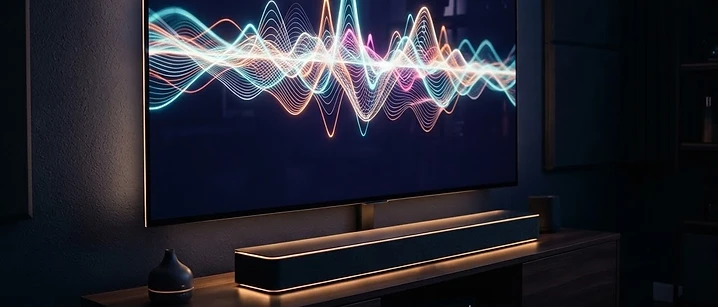
Short answer: switch your television's picture mode to Game or Standard, then set the player's audio output to stereo or PCM. Between them, those two changes fix the large majority of out-of-sync and missing-sound problems.
The reason is worth understanding: IPTV audio problems are rarely caused by the stream itself. They are usually caused by processing that happens after the stream arrives — inside the television, the soundbar or the app's audio decoder.
Identify which problem you have
- Audio lags behind the picture — a delay or latency issue, fixed by reducing processing.
- Audio runs ahead of the picture — less common, usually a soundbar delay setting.
- No sound at all on some channels — a format the device cannot decode.
- Crackling or popping — a connection quality issue or a bad audio format.
- Sound drops out briefly then returns — bandwidth, so treat it as a buffering problem.
Fix 1: Change the television picture mode
This is the single most effective fix for lip sync on live channels, and it takes ten seconds.
Modern televisions apply heavy picture processing — motion smoothing, noise reduction, dynamic contrast — to make film look better. That processing adds a delay to the picture while the audio plays at normal speed, so sound arrives early.
- Open your TV's picture settings.
- Change the picture mode from Cinema, Filmmaker or Vivid to Game or Standard.
- Re-check the channel.
Game mode disables most processing and is designed for low latency. If the sync improves, the television was the cause.
Fix 2: Set the player's audio output
If a channel has no sound at all, or only produces sound through some speakers, the audio format is the likely reason.
- Open the player's settings.
- Find Audio or Playback.
- Change the output from Auto or Surround to Stereo or PCM.
- Restart playback on the affected channel.
Stereo is the safest setting for televisions, sticks and phones. Surround formats only work reliably when every link in the chain supports them.
Fix 3: Adjust soundbar or receiver delay
If you run audio through a soundbar or AV receiver over HDMI or optical, the delay can be introduced there.
- Look for a setting called Audio Delay, Lip Sync or AV Sync.
- It is normally measured in milliseconds. Adjust in 20 ms steps, testing speech as you go.
- Some televisions also have a digital audio delay under Sound settings; if yours does, use that instead.
Set the soundbar to its own TV or Movie mode rather than a music mode, which often applies different processing.
Fix 4: Rule out the connection
When bandwidth dips, players reduce audio quality first to protect the picture. That is why crackling and drop-outs often travel with picture stutter.
- Test the same channel on a phone on the same Wi-Fi network.
- Use Ethernet if the device supports it.
- Restart the router.
- Check our broadband speed guide to confirm your connection is comfortably above what you need.
Fix 5: Check the device's own volume
A small number of cases come down to something simpler: the app's internal volume slider, a muted device, or an HDMI input that has been switched. It takes seconds to rule out.
- Press the volume-up button on the remote while the channel plays.
- Check the player app's own volume control, separate from the TV's.
- Confirm the correct HDMI input is selected.
- On phones, check the media volume rather than the ring volume.
Troubleshooting checklist
- Set the TV picture mode to Game or Standard
- Set the player audio output to Stereo or PCM
- Adjust the soundbar's audio delay in small steps
- Check the app's own volume and the TV's mute state
- Restart the device and the router
- Test a different channel in a different category
- Test the same login on a second device
- Compare with a non-IPTV source such as a streaming app to see whether the problem is the device or the stream
Common mistakes
- Assuming the provider is at fault. Sound problems are almost always local settings.
- Leaving the TV in Cinema mode and blaming the stream for lip sync.
- Running surround sound to a stereo television.
- Adjusting the soundbar delay too far, which overcorrects and makes it worse in the other direction.
- Testing on one channel only. Try several, including one you know worked before.
Tips for consistent audio
- Keep the picture mode on Game for everyday viewing.
- Leave the player on stereo output unless you have a full surround setup.
- Note your soundbar delay value once you find it, so you can restore it after a firmware update.
- Use one HDMI cable of decent quality rather than daisy-chaining adaptors.
- Reboot the streaming stick weekly to clear accumulated audio buffer problems.
The bottom line
Work from the television outwards: picture mode first, then player audio output, then the soundbar, and only then the connection. Most people are back to normal within two minutes, and nothing needs reinstalling.
For other playback issues, see our guides to channels not loading and picture quality.
Frequently asked questions
Related guides

 Troubleshooting
IPTV Channels Not Loading? How to Fix It in the UK
When channels fail to load it is rarely the app's fault. Here is how to tell a playlist problem from a network problem, and fix each one in a few minutes.

 Troubleshooting
IPTV EPG Not Working? Why Your Guide Is Blank and How to Fix It
A blank programme guide is one of the most common IPTV frustrations and one of the easiest to fix. Here is what actually causes it.

 Troubleshooting
IPTV Login Failed: Invalid Username, Password or Expired Account
Login errors are specific, and so are their fixes. This guide decodes the messages players show and tells you which ones you can solve yourself.


Ready when you are.
Pick a package, tell us your device, and we'll help you get set up for the evening.