IPTV EPG Not Working? Why Your Guide Is Blank and How to Fix It
A blank programme guide is one of the most common IPTV frustrations and one of the easiest to fix. Here is what actually causes it.
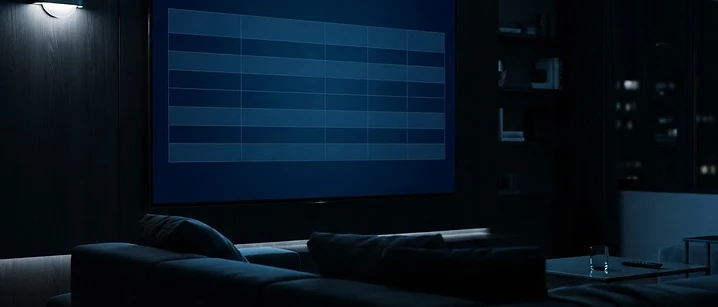
Short answer: force a manual EPG update first. If the grid is still empty, the guide source address is missing or wrong, or your channels are not matching the guide data. Both are fixed in the player's settings, not by reinstalling.
A blank guide is frustrating because everything else works — the channels play, the picture is fine, but you have no idea what is on. The good news is that the causes are few and the fixes are quick.
What the EPG actually is
An electronic programme guide is a data file — usually XMLTV — that lists programmes, times and descriptions for each channel. It is separate from the playlist that supplies the channels themselves. A player can load one perfectly and fail on the other.
If you want the background, our explainer on what an EPG is covers it in detail. This guide is about fixing one that is not working.
Fix 1: Force a manual update
Players update the guide on a schedule, and a failed update can leave the grid empty until the next cycle.
- Open the player's Settings.
- Find EPG or TV Guide.
- Select Update EPG or Refresh guide.
- Wait — do not leave the screen. On a large playlist this takes one to five minutes.
If the guide fills in, set the update interval to 12 or 24 hours so it refreshes overnight.
Fix 2: Check the guide source address
If a manual update changes nothing, the source is the problem.
- Open the playlist's settings and look for an EPG source field.
- If it is empty, that is your answer. Ask your provider for the guide address — it is often the same server address you use for the playlist, sometimes with a different path.
- If it is filled in, delete it and re-enter it carefully, watching for a truncated link or a trailing space.
- Save and force another update.
Fix 3: Understand why some channels have no guide
Guide data is matched to channels by name and by channel ID. When a playlist uses a slightly different name — an extra word, a different abbreviation, a regional variant — the match fails and only that channel shows no information.
What you can do:
- Check whether the affected channels share a naming pattern, which confirms a matching issue.
- In players that support it, use the EPG assignment or channel mapping tool to link a channel to the correct guide entry manually.
- Report a consistent mismatch to your provider — if a whole category is affected, they can correct it at source.
Fix 4: Check time zone and device clock
The guide is time-based. If the device clock is wrong, programmes appear in the wrong slots or the grid looks empty because it is showing a window where nothing is listed.
- Set the device to update time automatically, or set it manually to the correct UK time.
- Confirm the player's time zone setting is London rather than a default elsewhere.
Fix 5: Storage and memory
Guide data is cached on the device. When storage is full or memory is tight, players can fail to write the updated guide.
- Clear the app cache from your device settings.
- Remove unused apps from a stick or box.
- Restart the device, unplugging it for 30 seconds.
Troubleshooting checklist
- Force a manual EPG update and wait for it to finish
- Confirm an EPG source address is present and complete
- Re-enter the source address manually
- Check the device clock and time zone
- Clear the app cache
- Restart the device and router
- Test whether only some channels are affected, and note their names
- Try the same login in a second player to isolate the app
- Ask your provider for the current guide address
Common mistakes
- Leaving the EPG screen while it updates. Many players cancel the download if you navigate away.
- Assuming the guide is part of the playlist. It is a separate data source and often needs entering separately.
- Reinstalling the app before checking the source address.
- Ignoring the clock. An incorrect device time breaks the grid in ways that look like data problems.
- Expecting guide data for every channel. Smaller and regional channels frequently have none available.
Tips for a guide that keeps working
- Set updates to run overnight rather than on demand.
- Note your guide address alongside your login details.
- Keep the player updated — providers change guide paths periodically.
- On a large playlist, hide categories you never watch so the guide has less to build.
- If your player supports it, save a backup of your channel and guide configuration.
The bottom line
Force an update, then check the source, then check the clock. Those three steps resolve most blank guides, and the remainder are channel-matching issues that either need manual mapping or a fix from your provider.
For related setup problems, see our TiviMate setup guide and the IPTV Smarters Player guide.
Frequently asked questions
Related guides

 Troubleshooting
IPTV Channels Not Loading? How to Fix It in the UK
When channels fail to load it is rarely the app's fault. Here is how to tell a playlist problem from a network problem, and fix each one in a few minutes.

 Troubleshooting
IPTV Audio Out of Sync or No Sound: UK Fix Guide
Sound problems in IPTV are usually caused by the television or soundbar rather than the stream. Here is how to find the culprit in a few minutes.

 Troubleshooting
IPTV Login Failed: Invalid Username, Password or Expired Account
Login errors are specific, and so are their fixes. This guide decodes the messages players show and tells you which ones you can solve yourself.


Ready when you are.
Pick a package, tell us your device, and we'll help you get set up for the evening.