IPTV on Smart TV UK: Samsung, LG and Android TV Guide
A practical guide to running IPTV on a UK Smart TV — which platforms support it, how setup works, and what to do when an app is not available.
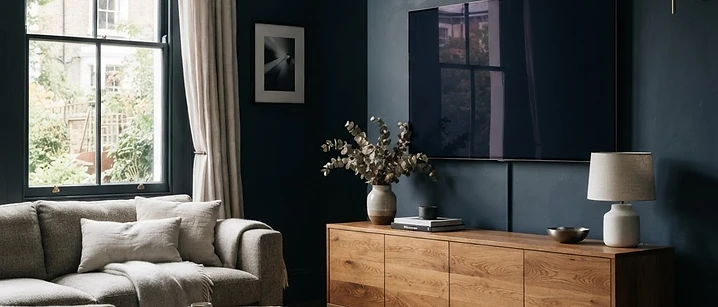
A Smart TV is the simplest place to watch IPTV, provided your television runs a platform with a suitable player app. This guide covers the three main families of UK Smart TV, how setup generally works and what to do when an app is not available.
Quick answer: IPTV works on Smart TVs running Samsung Tizen, LG webOS, Android TV or Google TV, using a player app from the television's own app store. On older or budget models without app support, a streaming stick or box connected by HDMI is the usual solution.
Which Smart TVs support IPTV?
Samsung (Tizen)
Samsung televisions use the Tizen platform. Player apps are installed from Samsung's own app store, and availability there is narrower than on Android. Search the store for a compatible player before assuming one exists for your model.
LG (webOS)
LG televisions use webOS, which has its own store. As with Samsung, the range of players is smaller than on Android, and app support can vary between model years.
Android TV and Google TV
These are the most flexible platforms. The Google Play Store carries the widest selection of player apps, and the same apps are often available on Fire TV devices too. If you are buying a television specifically for IPTV, an Android TV or Google TV model gives you the most options.
What you need before you start
- Your television connected to the internet.
- Your subscription credentials — usually a username and password, or a playlist link.
- The name of the player app you intend to use.
- A stable home network, ideally with the television cabled to the router.
How setup generally works
- Open your television's app store and search for the player app.
- Install it and open it.
- Choose the login method your provider uses — most commonly username and password, sometimes a playlist URL.
- Enter your details exactly as supplied.
- Allow the app to load channels and guide data. This can take a minute on first run.
- Open a channel and confirm playback.
The specific steps vary between apps, so follow the provider's setup notes for your platform. Our Fire TV installation guide follows the same pattern on a different platform.
Setting up the EPG
The Electronic Programme Guide is usually loaded automatically once you sign in, but many apps include a manual refresh option. If programme titles are missing or the times are wrong, refresh the guide, then restart the app. Persistent guide problems are worth raising with your provider — see our IPTV EPG guide.
Picture quality on a large screen
A Smart TV makes compression more visible than a phone or tablet does. Judge quality on movement: fast camera pans, sport and rolling news tickers reveal problems quickly. If the picture softens or stutters on the television but looks fine elsewhere, the television's processing or its network connection is worth checking first.
Common problems and fixes
- App not in the store. Some older or budget televisions do not offer a suitable player. A streaming stick connected by HDMI solves this.
- Buffering on the television only. Usually a Wi-Fi issue. Try a cable, or move the router. See our buffering guide.
- Login rejected. Re-enter your details carefully, checking for stray spaces, then confirm your subscription is active.
- App slow or crashing. Clear the app's cache, update it, or reinstall it.
- Guide empty. Refresh the guide data, then restart the television.
- Sound but no picture, or vice versa. Try a different channel, then restart the app.
Smart TV app or streaming stick?
A Smart TV keeps things tidy: one remote, no extra box. A streaming stick or box often provides a wider choice of players, more frequent updates and faster hardware, which matters on older televisions. If your Smart TV is several years old, a stick is frequently the better experience for the same subscription.
Frequently asked questions
Can I use IPTV on a Samsung Smart TV?
Yes, on models running Tizen, using a player app from Samsung's app store. Availability of specific apps varies by model and year.
Can I use IPTV on an LG Smart TV?
Yes, on webOS models, again using an app from the television's own store. Check that a suitable player is available for your model before subscribing.
What is the best Smart TV platform for IPTV?
Android TV and Google TV generally offer the widest choice of player apps. Samsung and LG work well but have smaller app catalogues.
Do I need a streaming stick if I have a Smart TV?
Not necessarily. If a compatible player is available and performs well, the television alone is enough. A stick helps when the television is older or the app store is limited.
Why does IPTV buffer on my Smart TV but not my phone?
Usually because of the television's network connection or its processing power. Connecting the television to the router by cable often resolves it.
The bottom line
Most modern UK Smart TVs can run IPTV with the right player app. Where they cannot, a streaming stick solves it for a modest cost.
See compatible devices, view our packages or ask for setup help.
Related guides

 Devices
Watching IPTV on Your Phone or Tablet in the UK
Your phone is the most flexible screen you own. Here is what to know before you use it for IPTV — data use, battery, casting and how connections work.

 Devices
IPTV on Apple TV and Roku: What Works in the UK
Apple TV and Roku are excellent streaming devices, but neither is designed with IPTV in mind. Here is what works on each, and what to do when an app is not in the store.

 Devices
IPTV Box UK: Do You Actually Need One?
Most UK households do not need a dedicated IPTV box. Here is when one genuinely helps, what specifications actually matter, and the box listings worth walking away from.


Ready when you are.
Pick a package, tell us your device, and we'll help you get set up for the evening.